

what you will learn in this lesson
| how to pass strings between activities | |
| Top back Button on second Activity As Result |
TUTORIAL LEVEL-
So in this tutorial we have to use intent.putExtra class to pass strings between activities
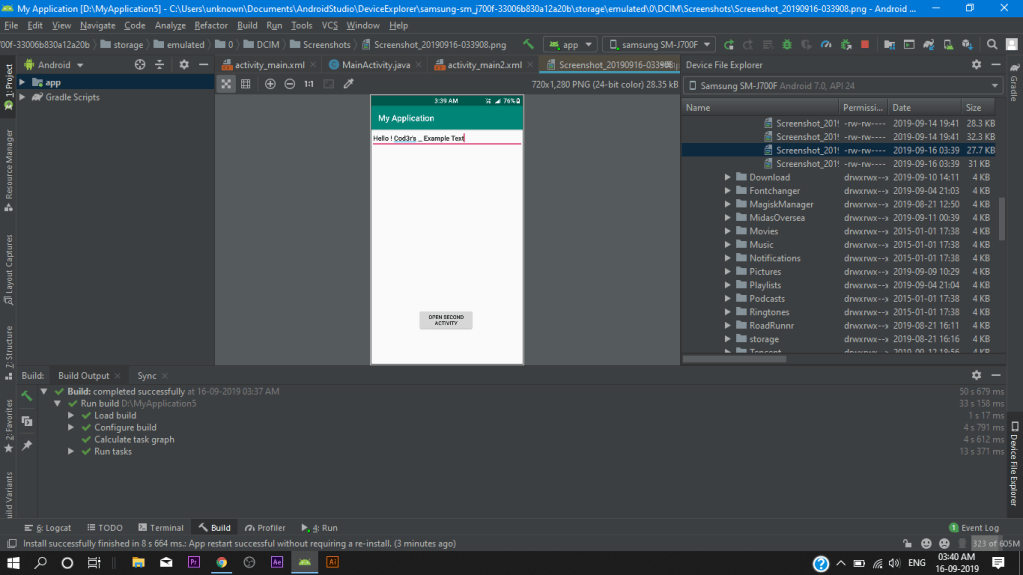
Activity Main.XML
<?xml version="1.0" encoding="utf-8"?>
<RelativeLayout xmlns:android="http://schemas.android.com/apk/res/android"
    xmlns:app="http://schemas.android.com/apk/res-auto"
    xmlns:tools="http://schemas.android.com/tools"
    android:layout_width="match_parent"
    android:layout_height="match_parent"
    tools:context=".MainActivity">

    <EditText
        android:id="@+id/et"
        android:layout_width="match_parent"
        android:layout_height="wrap_content"

        android:hint="Enter desired Text here" />

    <Button
        android:id="@+id/btn"
        android:layout_width="wrap_content"
        android:layout_height="wrap_content"
        android:layout_below="@+id/et"
        android:layout_alignParentStart="true"
        android:layout_alignParentLeft="true"
        android:layout_alignParentEnd="true"
        android:layout_alignParentRight="true"
        android:layout_marginStart="111dp"
        android:layout_marginLeft="111dp"
        android:layout_marginTop="387dp"
        android:layout_marginEnd="116dp"
        android:layout_marginRight="116dp"
        android:gravity="center_horizontal"
        android:text="open second Activity" />
</RelativeLayout>
Second Activity.XML
<?xml version="1.0" encoding="utf-8"?>
<RelativeLayout xmlns:android="http://schemas.android.com/apk/res/android"
    xmlns:app="http://schemas.android.com/apk/res-auto"
    xmlns:tools="http://schemas.android.com/tools"
    android:layout_width="match_parent"
    android:layout_height="match_parent"
    tools:context=".Main2Activity">


    <TextView
        android:id="@+id/textView"
        android:layout_width="match_parent"
        android:layout_height="wrap_content"
        android:text="HEelooow"
        android:textSize="40dp"
        android:gravity="center_horizontal"
        />

</RelativeLayout>
Main Activity.JAVA
package com.example.myapplication;

import androidx.appcompat.app.AppCompatActivity;

import android.content.Intent;
import android.os.Bundle;
import android.view.View;
import android.widget.Button;
import android.widget.EditText;

public class MainActivity extends AppCompatActivity {
    private EditText et;
    private Button btn;
 public static final String EXTRA_TEXT="com.example.myapplication.EXTRA_TEXT";

    @Override
    protected void onCreate(Bundle savedInstanceState) {
        super.onCreate(savedInstanceState);
        setContentView(R.layout.activity_main);

         btn=(Button)findViewById(R.id.btn);
         btn.setOnClickListener(new View.OnClickListener() {
             @Override
             public void onClick(View view) {
                 openActivity();
             }
         });
}

       public void openActivity(){
        EditText editText=(EditText)findViewById(R.id.et);
        String text = editText.getText().toString();

        Intent intent= new Intent(this,Main2Activity.class);
        intent.putExtra(EXTRA_TEXT, text);
                startActivity(intent);
    }

}
Second Activity.JAVA
package com.example.myapplication;

import androidx.appcompat.app.AppCompatActivity;

import android.content.Intent;
import android.os.Bundle;
import android.widget.TextView;

public class Main2Activity extends AppCompatActivity {

    @Override
    protected void onCreate(Bundle savedInstanceState) {
        super.onCreate(savedInstanceState);
        setContentView(R.layout.activity_main2);

        Intent intent = getIntent();
        String text =intent.getStringExtra(MainActivity.EXTRA_TEXT);

        TextView textView=(TextView)findViewById(R.id.textView);
        textView.setText(text);
    }
}
that’s all for today’s tutorial guys if you like this tips then share this post.

 Anon3m!Ty