
hello Cod3r’s Today you will learn about how to add dialog in android studio .
what you will learn in this tutorial
| how to add dialog in app project | AlertDialog.Builder builder |
| how to use java class in app | AppCompatDialogFragment |
TUTORIAL LEVEL
MAIN ACTIVITY.XML
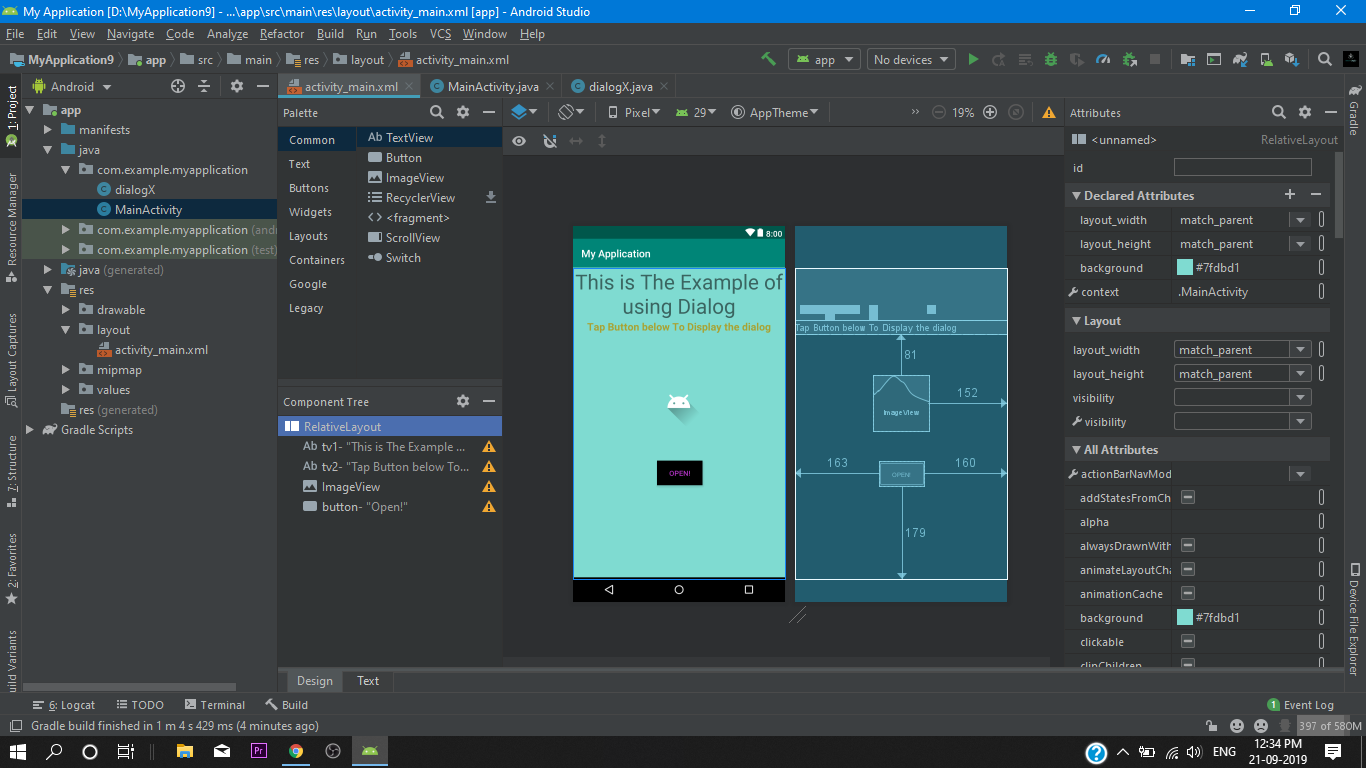
so first of all we set a button for the dialog box then we arrange all the widgets into our relative layout then we assign all widgets to there corresponding id’s.
<?xml version="1.0" encoding="utf-8"?>
<RelativeLayout xmlns:android="http://schemas.android.com/apk/res/android"
    xmlns:app="http://schemas.android.com/apk/res-auto"
    xmlns:tools="http://schemas.android.com/tools"
    android:layout_width="match_parent"
    android:layout_height="match_parent"
    tools:context=".MainActivity"
    android:background="#7fdbd1"
    >


    <TextView
        android:id="@+id/tv1"
        android:layout_width="match_parent"
        android:layout_height="wrap_content"
        android:text="This is The Example of using Dialog"
        android:textSize="40sp"
        android:gravity="center_horizontal"
        />

    <TextView
        android:id="@+id/tv2"
        android:layout_below="@+id/tv1"
        android:layout_width="match_parent"
        android:layout_height="wrap_content"
        android:gravity="center_horizontal"
        android:textStyle="bold"
        android:textColor="#a8a232"
        android:text="Tap Button below To Display the dialog"
        android:textSize="20dp" />

    <ImageView
        android:layout_width="wrap_content"
        android:layout_height="wrap_content"
        android:layout_below="@+id/tv2"
        android:layout_alignParentEnd="true"
        android:layout_alignParentRight="true"
        android:layout_marginTop="81dp"
        android:layout_marginEnd="152dp"
        android:layout_marginRight="152dp"
        android:foregroundGravity="center_horizontal"
        android:src="@drawable/ic_launcher_foreground" />

    <Button
        android:id="@+id/button"
        android:layout_width="wrap_content"
        android:layout_height="wrap_content"
        android:layout_alignParentStart="true"
        android:layout_alignParentLeft="true"
        android:layout_alignParentEnd="true"
        android:layout_alignParentRight="true"
        android:layout_alignParentBottom="true"
        android:layout_marginStart="163dp"
        android:layout_marginLeft="163dp"
        android:layout_marginEnd="160dp"
        android:layout_marginRight="160dp"
        android:layout_marginBottom="179dp"
        android:background="#000000"
        android:text="Open!"
        android:textColor="#b634c9"
        app:layout_constraintBottom_toBottomOf="parent"
        app:layout_constraintLeft_toLeftOf="parent"
        app:layout_constraintRight_toRightOf="parent"
        app:layout_constraintTop_toTopOf="parent" />

</RelativeLayout>
main activity.java
Here we declare are button in the main activity then we set onclick listener’s to them after setting onclick method’s we will create are method opration() {
Then we add a java class for our dialog.
package com.example.myapplication;

import androidx.appcompat.app.AppCompatActivity;

import android.os.Bundle;
import android.view.View;
import android.widget.Button;

public class MainActivity extends AppCompatActivity {

    private Button button;
    //we declare are button


    @Override
    protected void onCreate(Bundle savedInstanceState) {
        super.onCreate(savedInstanceState);
        setContentView(R.layout.activity_main);

  //we initialize are button and set a on click listener
        button=(Button)findViewById(R.id.button);
        button.setOnClickListener(new View.OnClickListener() {
            @Override
            public void onClick(View view) {
                opration();
            }
        });
    }
// in main activity we create are method opration() for that we add a java class

    public void opration() {
        dialogX dialogX = new dialogX();
        dialogX.show(getSupportFragmentManager(),"dialogX");


    }
}
DIALOG.JAVA
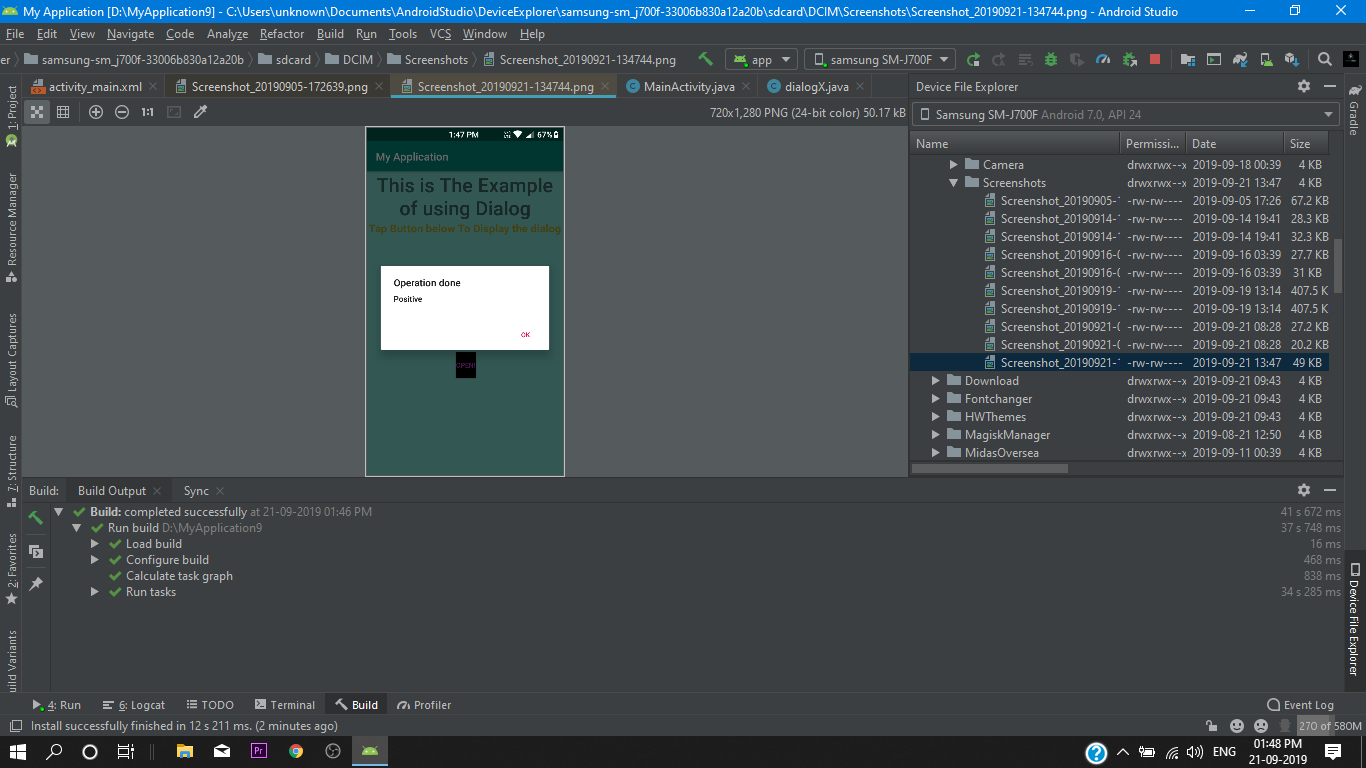
Finally in dialog.java file we override our oncreate method with Dialog onCreateDialog method and then with the help of AlertDialog.Builder we define are dialog box As you can see below at the code.
package com.example.myapplication;

import android.app.AlertDialog;
import android.app.Dialog;
import android.content.DialogInterface;
import android.os.Bundle;
import android.view.View;

import androidx.appcompat.app.AppCompatDialogFragment;

public class dialogX extends AppCompatDialogFragment {

    // we override our on click method with on create dialog
    @Override
    public Dialog onCreateDialog(Bundle savedInstanceState) {

        //create function here
        AlertDialog.Builder builder= new AlertDialog.Builder(getActivity());
        builder.setTitle("Operation done")
                .setMessage("Positive")
                .setPositiveButton("Ok", new DialogInterface.OnClickListener() {
                    @Override
                    public void onClick(DialogInterface dialogInterface, int i) {

                    }
                });
        //we return our function
     return builder.create();
    }
}
So That’s it For Today Cod3r’s
i hope you like this tutorial and after this you can use this method to implement this method for you app. its a cool thing right ! so subscribe for more resources and upcoming tutorial’s cause i will keep on posting for you all Cod3r’s
….

 Anon3m!Ty